Notebooks (Enterprise)
Introduction
Notebooks is an interactive procedure tool that allows operators to create, execute, and track multi-step workflows. Each notebook consists of a series of steps that can include formatted documentation (Markdown), telemetry displays (Screens), and executable code (Scripts). Notebooks provide a structured way to guide operators through complex procedures while maintaining a complete audit trail of execution.
Notebooks are stored within COSMOS targets and can be created, edited, and executed through the Notebooks tool interface. When a notebook is started, it creates a unique execution instance that tracks the completion status of each step.
Notebooks are similar to various e-procedure systems and Juypter notebooks.
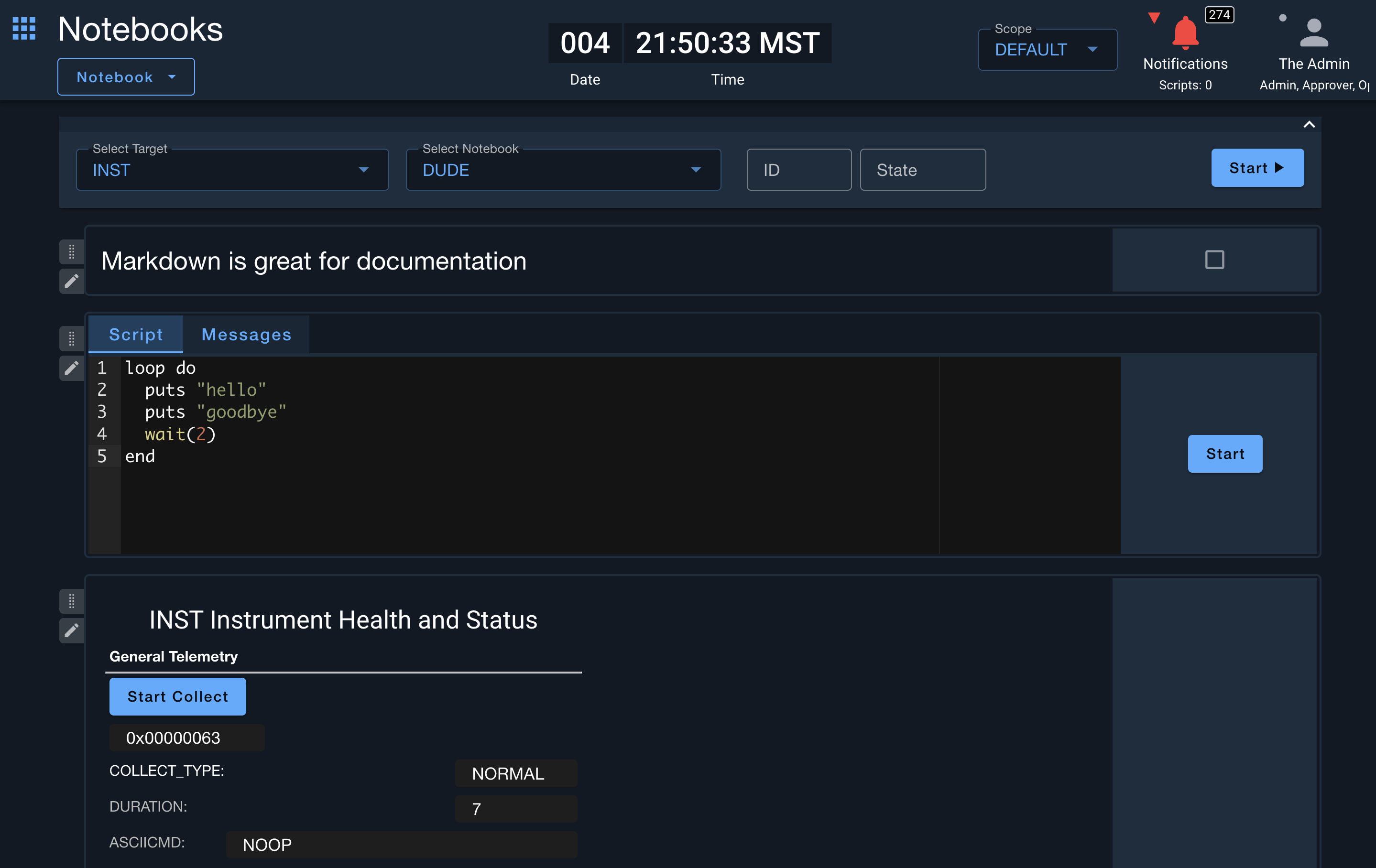
Notebooks Menus
Notebook Menu Items
- Create a new notebook in the selected target
- Edit or view the current notebook definition
- View execution status of running and completed notebooks
New Notebook
Creates a new notebook within the currently selected target. You'll be prompted to enter a name for the notebook. The notebook name should be descriptive and follow your organization's naming conventions.
Edit Notebook
Opens a dialog showing the raw notebook definition. This allows advanced users to directly edit the notebook configuration syntax. When a notebook is running or completed, this option changes to "View Notebook" and becomes read-only.
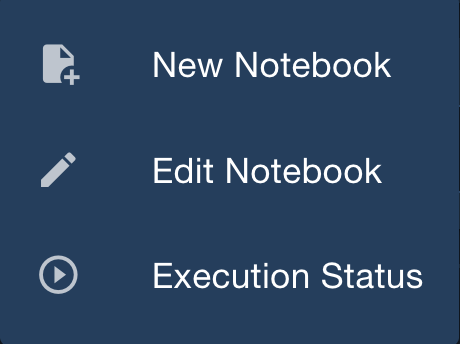
Execution Status
The Execution Status dialog displays currently running notebooks and recently completed notebooks. This allows users to:
- Monitor active notebook executions across the system
- Connect to running notebooks to follow along with execution
- View completed notebooks to review execution history
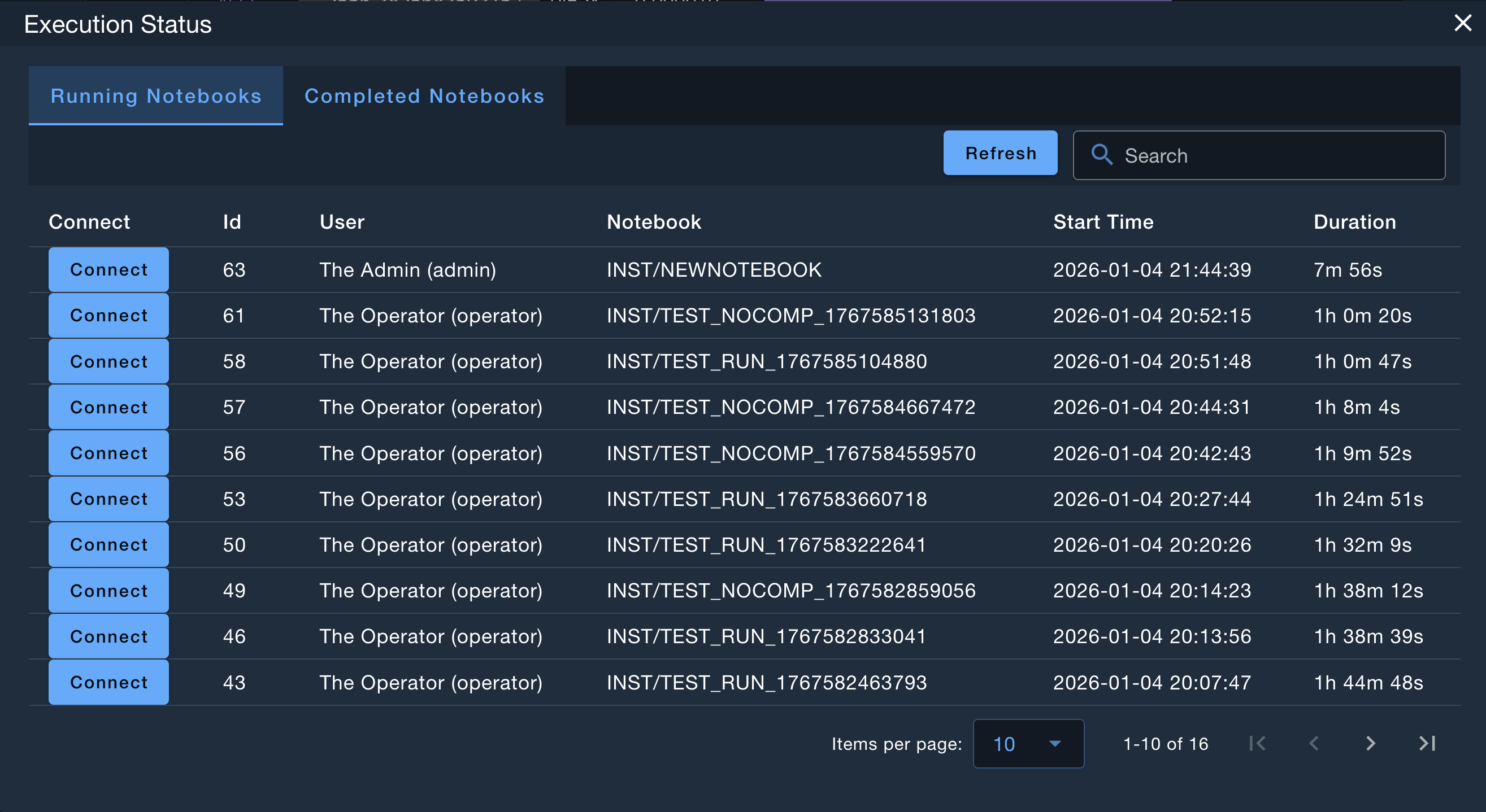
Notebook Interface
The main Notebooks interface consists of several key areas:
Selection Panel
At the top of the interface, you'll find drop-down menus to select:
- Target - The COSMOS target containing the notebooks
- Notebook - The specific notebook to view or execute
- ID - A unique identifier assigned when a notebook is started (read-only)
- State - The current execution state: empty (template), Running, or Completed
Action Buttons
- Start - Begins execution of the notebook, creating a new instance with a unique ID
- Complete - Marks a running notebook as complete (requires all completable steps to be checked or confirmation)
- Show Template - Returns to the original template view after viewing a completed notebook
Steps Area
The main area displays the notebook steps in order. Each step shows:
- Step content (markdown text, screen display, or script interface)
- Completion checkbox (for completable steps when running)
- Edit button (pencil icon) for modifying steps
- Drag handle for reordering steps (when not running)
Step Types
Notebooks support several types of steps:
Markdown Step
Markdown steps display formatted text content. They support standard Markdown syntax including:
- Headers
- Bold and italic text
- Bullet and numbered lists
- Links and images
- Code blocks
Markdown steps are ideal for procedure instructions, notes, warnings, and documentation.

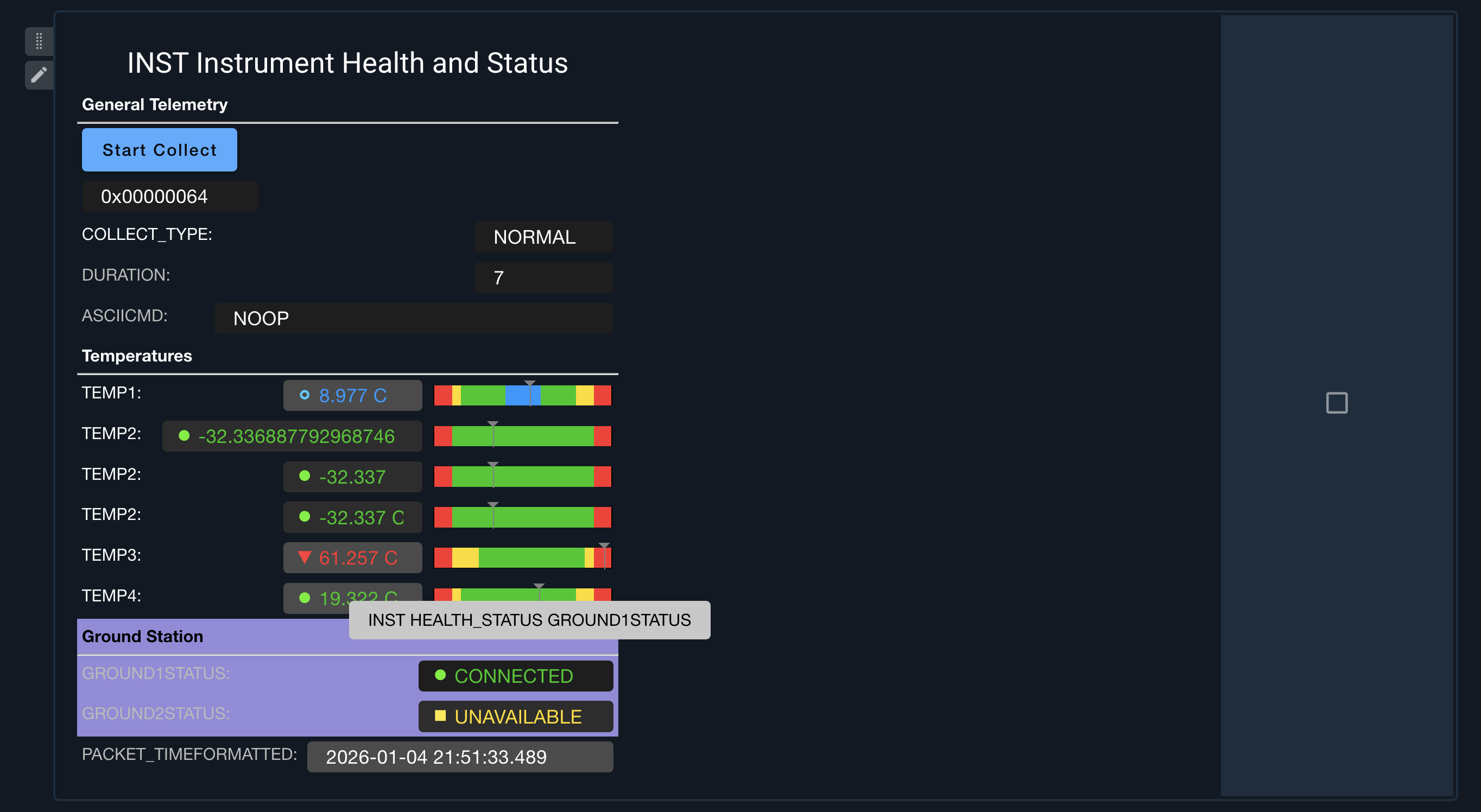
Screen Step
Screen steps embed COSMOS telemetry screens directly within the notebook. You can either:
- Reference an existing screen - Select a target and screen from your COSMOS configuration
- Define inline screen content - Write custom screen definitions directly in the notebook
Screen steps allow operators to monitor relevant telemetry. Completing the screen step will capture the screen values at the time the step is completed.
Script Step
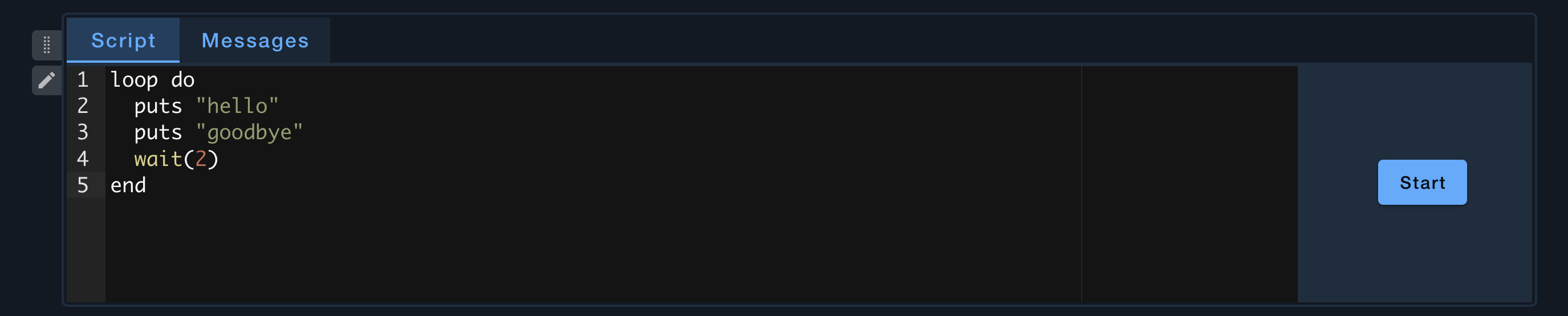
Script steps execute Ruby or Python code within the notebook context. You can either:
- Reference an existing script - Select a script file from your COSMOS scripts
- Define inline script content - Write custom script code directly in the notebook
Script steps include an embedded Script Runner interface that shows:
- The script code (read-only during execution)
- Log messages from script execution
- Execution controls (Start, Pause, Stop, Go, Retry)
Creating and Editing Notebooks
Adding Steps
Click the "Add Step" button at the bottom of the notebook to add a new step. You'll be presented with a dialog to:
- Select the step type (Markdown, Screen, or Script)
- Configure the step content
- Set optional properties like "Noncompletable"
Editing Steps
Click the pencil icon next to any step to edit its content. The edit dialog allows you to:
- Modify the step content
- Change step properties
- Delete the step
When a notebook is running, you can still edit steps to make corrections. These changes are tracked as "redline" modifications in the execution history.
Reordering Steps
When not running, you can drag steps using the drag handle (vertical dots icon) to reorder them.
Step Properties
Noncompletable
Steps marked as "Noncompletable" do not show a checkbox when the notebook is running. Use this for informational steps that don't require operator acknowledgment. Not available for script steps.
Running Notebooks
Starting Execution
- Select the target and notebook you want to execute
- Click the Start button
- The notebook will be assigned a unique ID and the state will change to "Running"
- The URL will update to include the notebook ID for sharing
Completing Steps
While a notebook is running:
- Completable steps show a checkbox
- Check the checkbox to mark a step as complete
- The completion is recorded with the operator's username and timestamp
- Script steps are automatically marked complete when the script finishes successfully
Scripts can be uncompleted and recompleted by rechecking the checkbox, or restarting the script. These actions are recorded in the notebook file.
Completing the Notebook
When all required steps are complete (or after confirmation if some are incomplete):
- Click the Complete button
- If incomplete steps remain, you'll be prompted to confirm
- The notebook state changes to "Completed"
- The execution record is preserved for audit purposes
Connecting to Running Notebooks
Other users can connect to a running notebook through the Execution Status dialog. This allows:
- Following along with procedure execution
- Monitoring progress across the team
- Taking over execution if needed (with appropriate permissions)
Permissions
Notebooks respect COSMOS role-based access control:
| Role | View | Edit | Execute |
|---|---|---|---|
| Admin | ✓ | ✓ | ✓ |
| Operator | ✓ | ✓ | ✓ |
| Runner | ✓ | ✗ | ✓ |
| Viewer | ✓ | ✗ | ✗ |
Custom roles can be configured with specific permissions:
notebook_edit- Allows editing notebook definitionsnotebook_run- Allows starting and completing notebooks
Notebook Definition Syntax
Notebooks are stored as text files with a specific syntax. While most users will interact through the GUI, understanding the syntax helps with advanced editing:
STEP_START MARKDOWN
# Procedure Title

Follow these steps carefully.
STEP_END
NO_COMPLETE

STEP SCREEN INST HEALTH_STATUS

STEP_START SCRIPT
puts "Hello from script"
wait 1
STEP_END
Keywords
| Keyword | Description |
|---|---|
STEP_START <type> | Begins a step block with inline content (MARKDOWN or SCRIPT) |
STEP_END | Ends a step block |
STEP <type> <args> | Single-line step definition (SCREEN target screen_name) |
NO_COMPLETE | Marks the preceding step as non-completable |
NOTEBOOK_START | Automatically added when execution begins |
NOTEBOOK_COMPLETE | Automatically added when execution completes |
STEP_COMPLETE | Automatically added when a step is checked complete |
STEP_UNCOMPLETE | Automatically added when a step is unchecked complete |
REDLINE_STEP_START | Marks an edited version of a step during execution |
REDLINE_STEP_END | Ends a redline block |
DATA | Single-line step data storage (DATA SCRIPT_ID 1) |
DATA_START | Begins a data block (DATA_START data_name) |
DATA_END | Ends a data block |
Best Practices
Procedure Design
- Start with a Markdown step explaining the procedure purpose and prerequisites
- Group related steps logically
- Use Screen steps to show relevant telemetry for monitoring
- Include verification steps after critical operations
- End with a summary or sign-off step
Documentation
- Write clear, concise instructions in Markdown steps
- Include warnings and cautions prominently
- Reference relevant documentation or specifications
Script Integration
- Keep inline scripts short and focused
- For complex operations, reference external script files
- Include appropriate error handling and retries
- Use
ask()for operator inputs when needed
Execution Tracking
- Use meaningful notebook names that identify the procedure
- Complete notebooks promptly to maintain accurate records
- Review completed notebooks for lessons learned