GCP GKE
Running OpenC3 COSMOS Enterprise on Google Cloud Platform (GCP) uses GKE (Google Kubernetes Engine), Cloud Storage buckets, and a GKE Ingress with a Google-managed certificate. OpenC3 provides Terraform scripts to deploy the basic set of services COSMOS Enterprise requires. You can either integrate these scripts into your own deployment strategy or make sure you already have similar services configured before deploying the Helm charts. For the equivalent AWS deployment, see the AWS EKS guide.
Initial Configuration
Install the gcloud client.
macOS (Homebrew):
brew install --cask google-cloud-sdk
Windows (Chocolatey):
choco install gcloudsdk
If you have another OS or don't want to use Homebrew or Chocolatey, follow Google's installation instructions.
Install the GKE authentication plugin used by kubectl, then initialize the client:
gcloud components install gke-gcloud-auth-plugin
gcloud init
gcloud auth application-default login
Also ensure you have kubectl installed and in your path.
GCP Configuration
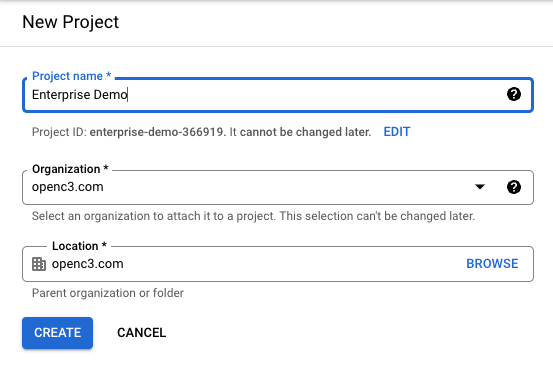
Click the project selector next to Google Cloud to bring up the new project dialog.

Create a new project with the project name set to your program.
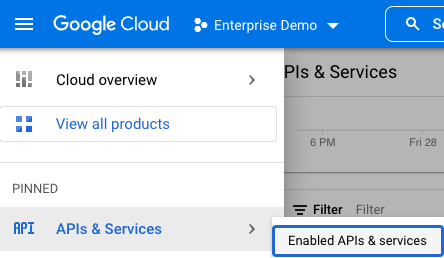
Go to APIs & Services / Enabled APIs & services.
Scroll down and ensure the Compute Engine API, Cloud Storage API, IAM Service Account Credentials API, Identity and Access Management (IAM) API, and Kubernetes Engine API are all enabled. Click each one and Enable.
Ensure you're working with this new project by setting the gcloud project:
gcloud config set project <PROJECT ID>
gcloud services enable container.googleapis.com
Configure Terraform
The Terraform modules live in cloud/gcp in the cosmos-enterprise repository. Follow the GCP README to deploy the cluster. It describes setting your project, region, machine type and node count in terraform.tfvars, applying the configuration, and configuring kubectl.
The tsdb (QuestDB) requires vm.max_map_count to be raised on every node. The Terraform node pool does this through the max_map_count variable, so leave it at the default (1048576) unless you have a reason to change it. Changing it later replaces the nodes.
Make a note of the Terraform outputs. You need them for the Helm values below:
bucket_names- the config, logs and tools bucket namesservice_account_email- the GCP service account COSMOS uses for bucket accessstatic_ipandstatic_ip_name- the global static IP address for the ingress
Configure DNS
Create a DNS A record that points your domain to the static_ip Terraform output. The Google-managed certificate can't be provisioned until your domain resolves to this address.
Enterprise Helm Charts
There are 3 Helm charts that install the full COSMOS Enterprise:
- openc3-nfs - Network file storage chart that creates an NFS volume
- openc3-db - Installs the COSMOS databases: Redis, the tsdb (QuestDB), and PostgreSQL (for Keycloak). On GCP the buckets subchart is disabled because COSMOS uses Cloud Storage.
- openc3 - Installs the remaining COSMOS Enterprise software
openc3-nfs
First examine the openc3-nfs cloud values:
global:
  # Modify to your own DNS record
  cosmosDomain: aws.openc3.com
  image:
    registry: repos.openc3.com
    namespace: openc3
    pullSecrets:
      - name: registry
Change cosmosDomain to your own domain. Update the registry if you've deployed the containers to a local registry (for example if you're air-gapped).
openc3-db
Next examine the openc3-db GCP values.
Change cosmosDomain and potentially the registry. Leave buckets.enabled: false since Cloud Storage provides the buckets. Disable postgresql only if you are using an external Keycloak. The tsdb.maxMapCount setting adds a privileged init container that raises vm.max_map_count on nodes that were not tuned by Terraform. It is harmless on tuned nodes, but a namespace with PodSecurity baseline or restricted will reject it, in which case remove it and tune the nodes instead.
openc3
Next examine the openc3 GCP values.
Change cosmosDomain, cosmosExternalUrl, and potentially the registry. You also need to update:
logsBucket,toolsBucket, andconfigBucketto thebucket_namesTerraform outputcloud.gcp.serviceAccountEmailand theiam.gke.io/gcp-service-accountannotation underserviceAccount.annotationsto theservice_account_emailTerraform outputgcp.ipAddressNameto the name of the static IP address (the last part of thestatic_ip_nameTerraform output)grafana.rootUrl,grafana.authUrl, andkeycloak.externalUrlto match your domain
The GCP load balancer terminates TLS with a Google-managed certificate for cosmosDomain, so keep ssl: true and traefik.tlsCerts: false. See SSL-TLS for details on this pattern and the openc3-cacert secret.
Deploy Helm Charts
Follow the instructions in the Helm README using the "Initial steps" and "Development in the cloud" sections. These describe authenticating with the registry, creating a namespace, installing the registry pull secret, creating the secrets, and deploying the Helm charts.
Once everything has been deployed and the pods are running, check that the GCP certificate has been provisioned:
kubectl describe managedcertificate openc3-cert
Wait for the Certificate Status to go from "Provisioning" to "Active". This can take a while after DNS starts resolving to the static IP. You can also check the ingress with kubectl describe ingress openc3-ingress.
You can now load your domain (https://<DOMAIN>/auth/admin/master/console) and start configuring Keycloak.
Troubleshooting
See Troubleshooting.